
How to Connect a Laptop to a TV: Easy Steps for You
By Jason Bingham · October 19, 2026
Jason has spent 16 years helping everyday people get comfortable with technology.
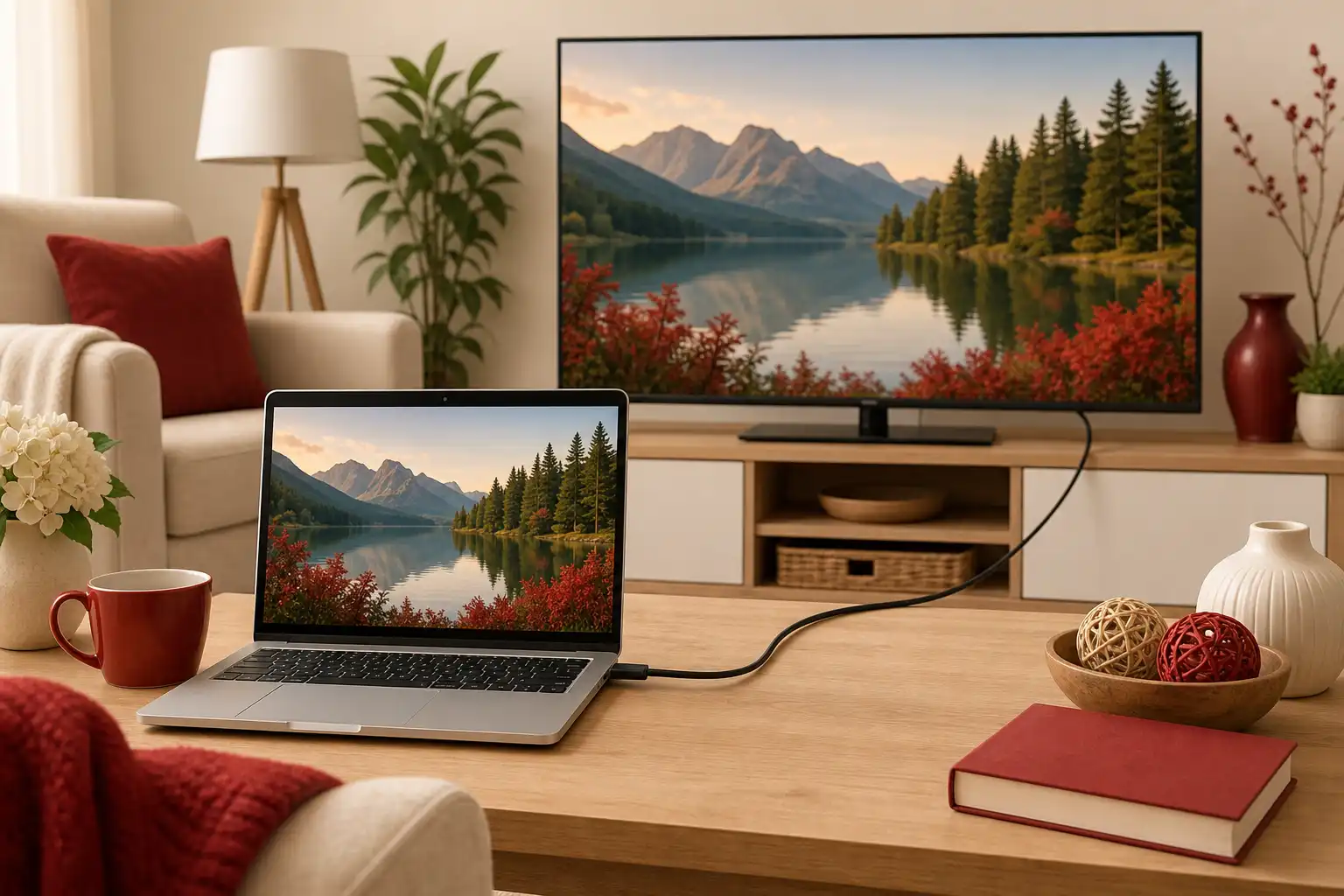
How to Connect a Laptop to a TV: A Simple Guide
Connecting your laptop to your TV can open up a whole new world of entertainment. Whether you want to watch your favorite shows on a bigger screen or present some family photos during the holidays, I’m here to help you through the process step by step. Let’s take this at a comfortable pace.
What You'll Need
Before we start, make sure you have these things handy: your laptop, your television, and the necessary cables. Depending on the connections available, this will usually be an HDMI cable. Most modern laptops and TVs have HDMI ports, which makes things much simpler. If you’re unsure, just look for a port that looks like a flattened rectangle.
If your laptop does not have an HDMI port, don’t worry. Adapters are available to help connect your laptop to the TV. Common adapters include USB-C to HDMI or DisplayPort to HDMI, depending on your laptop's ports.
Connecting Your Laptop to Your TV
Now, let’s dive into the steps. Take your time; there’s no rush.
- Locate Your HDMI Port: Check your laptop and locate the HDMI port. It is usually on the side, and it looks like a narrow slot. Do the same for your TV and find the HDMI input port. It may be labeled as “HDMI 1” or “HDMI 2.”
- Connect the HDMI Cable: Plug one end of the HDMI cable into your laptop and the other end into the TV’s HDMI port. Make sure they are securely plugged in.
- Select the Correct Input on Your TV: Turn on your TV and use the remote control to select the HDMI input where you connected the cable. Look for a button that says “Input” or “Source” on the remote. Press it until you see your laptop screen appear on the TV.
- Adjust Display Settings (if needed): Sometimes, the screen may not look just right. On your laptop, right-click on the desktop and choose “Display settings.” Here, you can select how you want your display to work. Under “Multiple displays,” you can choose “Duplicate” to show the same image on both the laptop and TV or “Extend” to use the TV as a second screen.
Troubleshooting Common Issues
Sometimes, things don't go as smoothly as we hope. One common issue is not seeing the laptop screen on the TV. If that happens, make sure the HDMI cable is securely connected to both devices. Restarting both the laptop and TV can also help.
Another point of confusion can be the resolution settings. If everything is connected, but the display looks odd or blurry, head back to the display settings I mentioned earlier. You might need to choose a different resolution that fits your TV screen better.
Using Wireless Options
If you prefer a cable-free option, you may want to look into wireless casting. Many smart TVs offer features like “Miracast” or “Apple AirPlay” which let you project your laptop’s screen without a cable.
For a PC running Windows, you can look for the “Project” option by pressing the Windows key + P. This brings up options to connect wirelessly. If you don’t see your TV listed, ensure both devices are on the same Wi-Fi network.
If you have a MacBook and a compatible smart TV, you can use AirPlay. It’s as simple as clicking the AirPlay icon on your laptop’s menu bar and choosing your TV.
Wrapping Up
And there you have it! A simple way to connect your laptop to your TV. With just a few steps, you're ready to enjoy your favorite films, shows, and pictures in a larger format.
Don’t worry if it's not perfect the first time; every technology has its quirks. Just keep trying, and before long, you’ll feel more comfortable with the whole process. Now, why not give it a try? Grab that HDMI cable and see what happens!
If you’re also curious about keeping your device up to date, check out our guide on checking for computer updates. Happy viewing!