
Free Up Storage Space on Your Computer: An Easy Guide
By Jason Bingham · September 14, 2026
Jason has spent 16 years helping everyday people get comfortable with technology.
Understanding How to Free Up Storage Space on Your Computer
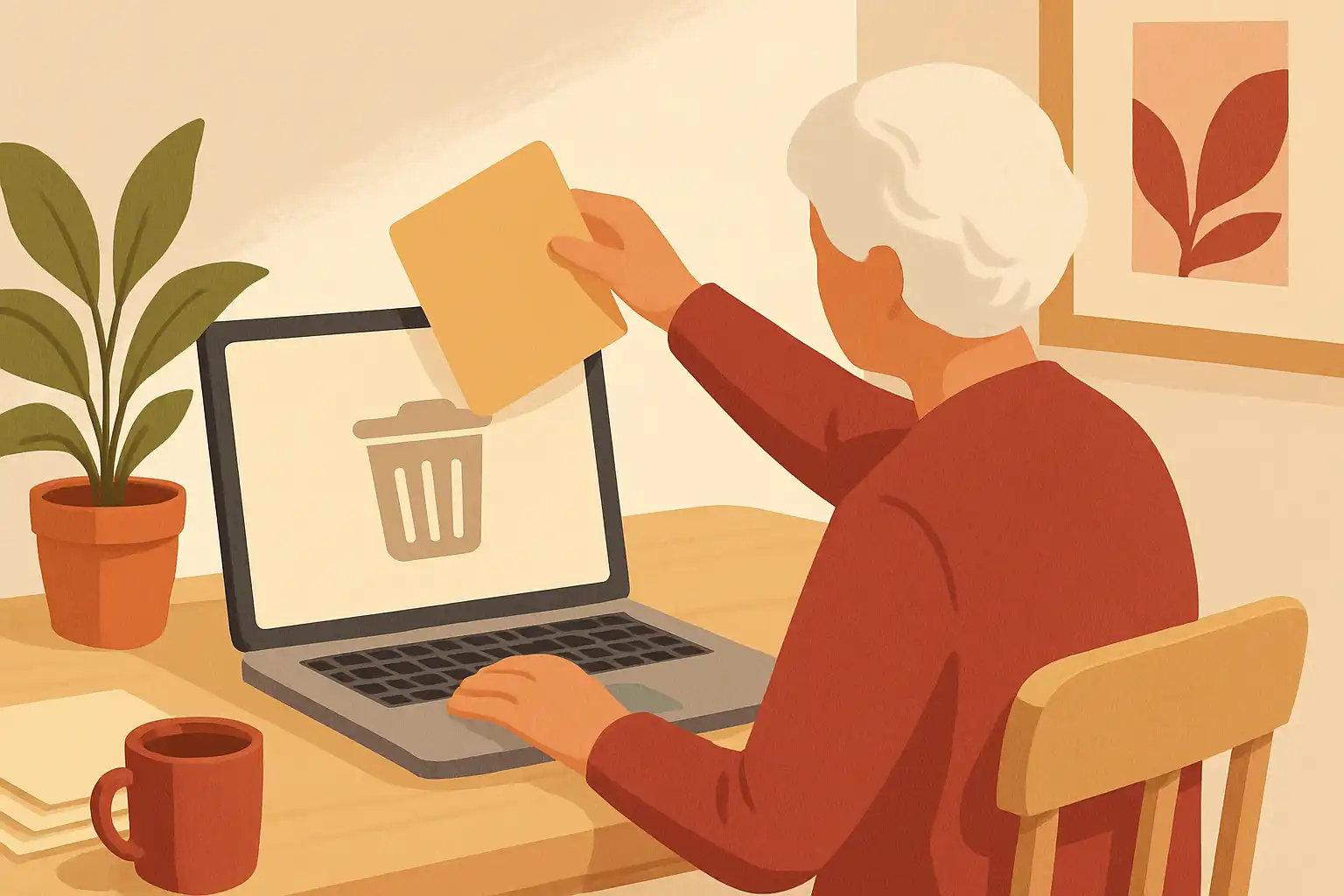
Most of us have faced that pesky notification telling us our computer is running out of storage space. It can feel overwhelming at first, especially if you're still finding your way around a computer. But don't worry; freeing up storage is much simpler than it seems. With a little patience and some straightforward steps, you can create more space for the things you want to keep.
First, let's take a peek at what's likely taking up space on your computer. Besides the applications you use regularly, other factors can contribute, like pictures, videos, and downloads that you might have forgotten about. Ensuring you have enough storage can help your computer run smoother and faster, which is always a positive experience.
Finding Out How Much Storage You Have
Before we start cleaning up, it's a good idea to check how much storage you currently have.
On a Windows computer, click on the File Explorer icon that looks like a folder, usually found on your taskbar. Once you're in File Explorer, look for This PC on the left side. Click on it, and you'll see different drives. Right-click on the C: drive (often the main one) and select Properties. A window will pop up showing you a pie chart that reveals how much space you have used and how much is free. It's a great starting point to know just how much clearing up you need to do.
If you're using a Mac, click on the Apple logo in the corner of your screen, then select About This Mac. From there, go to the Storage tab. This will show you how your storage is being used in a handy visual format, helping you figure out what to focus on.
Identify and Remove Unnecessary Files
After getting a sense of your storage situation, it's time to act. Start with your Downloads folder. This area often collects files that you download but may not need long-term, like temporary documents or installation files. Open File Explorer or Finder, go to Downloads, and look through what you have. If you see files you no longer need, simply right-click on them and select Delete.
Next, let's tackle photos and videos. While keeping memories is important, we can sometimes accumulate more than we realize. Make it a habit to review your Pictures folder regularly. If you find duplicates or snapshots you'll never look at again, delete them to free up some space. Windows often allows you to view images as thumbnails, making it easy to recognize which ones you want to keep and which to toss.
For Mac users, just navigate to your Photos app, and you can easily browse your albums. As you scroll through, think critically about whether you truly need each photo.
Emptying the Recycle Bin or Trash
One step that many people overlook is emptying the Recycle Bin or Trash. Deleting a file doesn't remove it from your computer immediately; it just moves it to a temporary holding area. To clear out this folder, open the Recycle Bin on Windows by double-clicking its icon on your desktop. Once opened, you can right-click on any area inside and select Empty Recycle Bin. This action permanently deletes those files and frees up space.
If you're on a Mac, look for the Trash icon in your dock. Right-click on it and choose Empty Trash. This will clear out all the files you've thrown away recently.
Uninstalling Unused Programs
Next, let's declutter by removing programs you don't use anymore. This can free up considerable space as some applications consume large amounts of storage.
On Windows, go to the Start Menu, click on the Settings gear icon, which might be found on the left sidebar or sometimes directly above the Start Menu. Then, select Apps and, under Apps & features, scroll through the list of programs. If you spot something that you haven't used in a while—or at all—click on it and choose Uninstall.
For Mac users, instead of a settings menu, you can simply go to the Applications folder found in Finder. Browse through the apps listed, and if something doesn't seem familiar or useful anymore, you can usually drag it to the Trash, effectively uninstalling it.
Utilizing Cloud Storage
If you're still struggling for space after cleaning up, consider using cloud storage. Cloud storage is an online service that allows you to store files on the internet instead of just on your computer. This is especially handy for keeping important documents, photos, and files without taking up space on your device.
Services like Google Drive, iCloud, or Dropbox can be great places to start. For instance, if you have a Google account, you likely already have access to Google Drive. To upload files, you simply log into Google Drive, then drag and drop your files into the interface. You can access them from any computer or device with internet access, keeping everything safe yet freeing up space on your machine.
Additionally, many cloud services have mobile apps, which can make managing these files straightforward even when you're on the go.
Use Disk Cleanup Tools
Another useful feature on Windows is the Disk Cleanup tool. This program can help identify files that are safe to remove. To access it, type Disk Cleanup into the search bar next to the Start Menu. Select your main drive—usually C:—and this tool will calculate how much space you can free up.
You'll see a list of items, like temporary files, old system files, and more. You can select those you want to delete and click OK. This can feel particularly satisfying, as you can see the amount of space you're about to free up before committing!
Unfortunately, Mac doesn't have a built-in tool exactly like Disk Cleanup, but you can download third-party apps like CleanMyMac that can help automate some of these cleanup processes.
Acknowledge the Confusion
Dealing with files can sometimes feel like a game of hide-and-seek, especially if you're not familiar with where everything is. It can be a little frustrating when some programs don't clearly label what files are taking up space or when unexpected downloads occur. Remember that it's completely normal to feel this way. Just take your time to learn and practice these steps.
By freeing up space on your computer, you'll not only improve its performance but also create a more pleasant working or browsing experience. Lastly, this practice can encourage good habits for keeping your device organized.
So why don't you take a moment now to check your Downloads folder or Photos? You might be surprised at how much unnecessary clutter you can clear out!