
Close Unwanted Browser Tabs: A Simple Guide for Beginners
By Jason Bingham · October 26, 2026
Jason has spent 16 years helping everyday people get comfortable with technology.
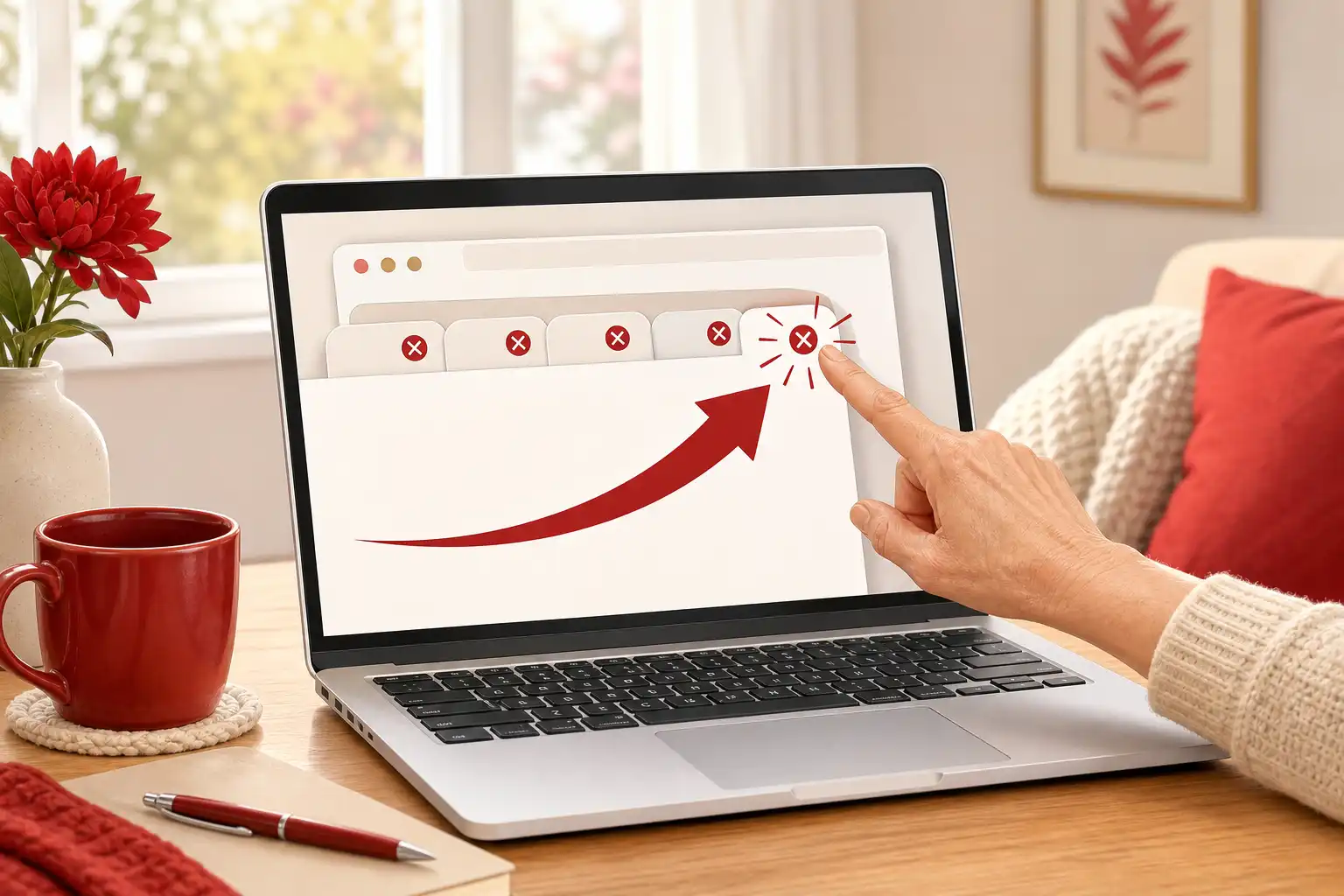
How to Close Unwanted Browser Tabs with Ease
It's easy to feel overwhelmed when you find yourself staring at a screen filled with multiple browser tabs. You might be surfing the internet, and before you know it, you open too many tabs that clutter your view and make it hard to focus. The good news is that closing those tabs is quite simple, and I’m here to guide you through the process. Let’s take a moment to organize your digital space. With just a few steps, you’ll feel more in control of what you see on your screen.
Why Close Unwanted Tabs?
Closing unwanted tabs can help reduce distractions, keep your browser running smoothly, and make it easier to find what you really need. When a browser has too many tabs open, it can slow down your computer. Plus, a tidy tab bar just feels better! Now, let’s get started on how to close those tabs effectively.
How to Close Tabs on Different Browsers
Before we dive into the steps, it's good to know that different browsers might have slightly different ways to close tabs. I'll walk you through the most common ones: Google Chrome, Mozilla Firefox, and Microsoft Edge.
For Google Chrome
- Look at the top of your Chrome window. You’ll see a row of tabs. Each tab has a name and possibly a small icon next to it.
- Find the tab you want to close. It will be right there in the row. To close it, look for a small “X” at the far right of the tab.
- Click the “X,” and the tab will close. If you accidentally close a tab you didn’t mean to, don’t worry! Just right-click on an empty space in the tab bar and choose “Reopen closed tab.”
For Mozilla Firefox
- Just like in Chrome, look at the top where your tabs are displayed. Each one has its own title and possibly an icon.
- Find the tab you want to close. When you spot it, you will see an “X” on the right side of the tab.
- Click the “X” to close it. If you want to reopen a mistakenly closed tab, simply right-click on the tab area and select “Undo Close Tab.”
For Microsoft Edge
- Check the top of your Edge window for the tabs, similar to other browsers. Each tab has a name.
- Locate the tab you don’t need anymore. There will be a small “X” at the end of the tab.
- Click that “X” to close it. Should you need to reopen it, right-click on the tab bar and choose “Reopen closed tab.”
Handling Multiple Tabs
Sometimes you may find yourself with several tabs open that you need to close at once. While the “X” method is perfect for one tab at a time, here’s how to quickly close multiple tabs in general:
- Take your mouse to the tab you want to keep open. Hold down the “Ctrl” key on your keyboard if you're using Windows, or the "Command" key if you're on a Mac.
- While holding that key, click on all the tabs you want to remain open. This will select them.
- Once you’ve selected the ones to keep, simply right-click on one of the unselected tabs and choose “Close other tabs.” This will close all the tabs you didn’t select, making it a quick way to clean up your tab bar.
Using Keyboard Shortcuts
For those who prefer keyboard shortcuts, there are quick key combinations to close tabs without reaching for your mouse. Here’s how:
If you're using Google Chrome or Microsoft Edge on a Windows computer, simply press “Ctrl” + “W” to close the current tab. On a Mac, it’s “Command” + “W.” This works in all major browsers and is a handy trick to remember!
Remember, if you find an interface confusing, it’s completely normal! Sometimes the layout of browser features can be a little clunky. It can feel challenging at first, but with practice, you’ll start feeling more comfortable.
Keeping Your Browsing Experience Clean
Now that you know how to close unwanted tabs, consider making it a regular practice. If you find that you often have too many open tabs, try getting into the habit of closing them as soon as you’re done with a website. This will help you maintain a more organized workspace.
Additionally, if you find yourself opening the same websites often, you could bookmark them instead. That way, you can easily access them without leaving a tab open. To bookmark a page, simply click the star icon located in the address bar at the top of the browser window.
Conclusion
Congratulations! By following these steps, you should now feel more confident about managing your browser tabs. Regularly closing unwanted tabs not only helps your browser run better but also gives you a clearer focus on what matters most at that moment. So, try it out right now—take a moment to tidy up your tabs. You will likely feel a sense of accomplishment afterward!