
How to Add Speaker Notes in PowerPoint: Easy Steps
By Jason Bingham · October 23, 2026
Jason has spent 16 years helping everyday people get comfortable with technology.
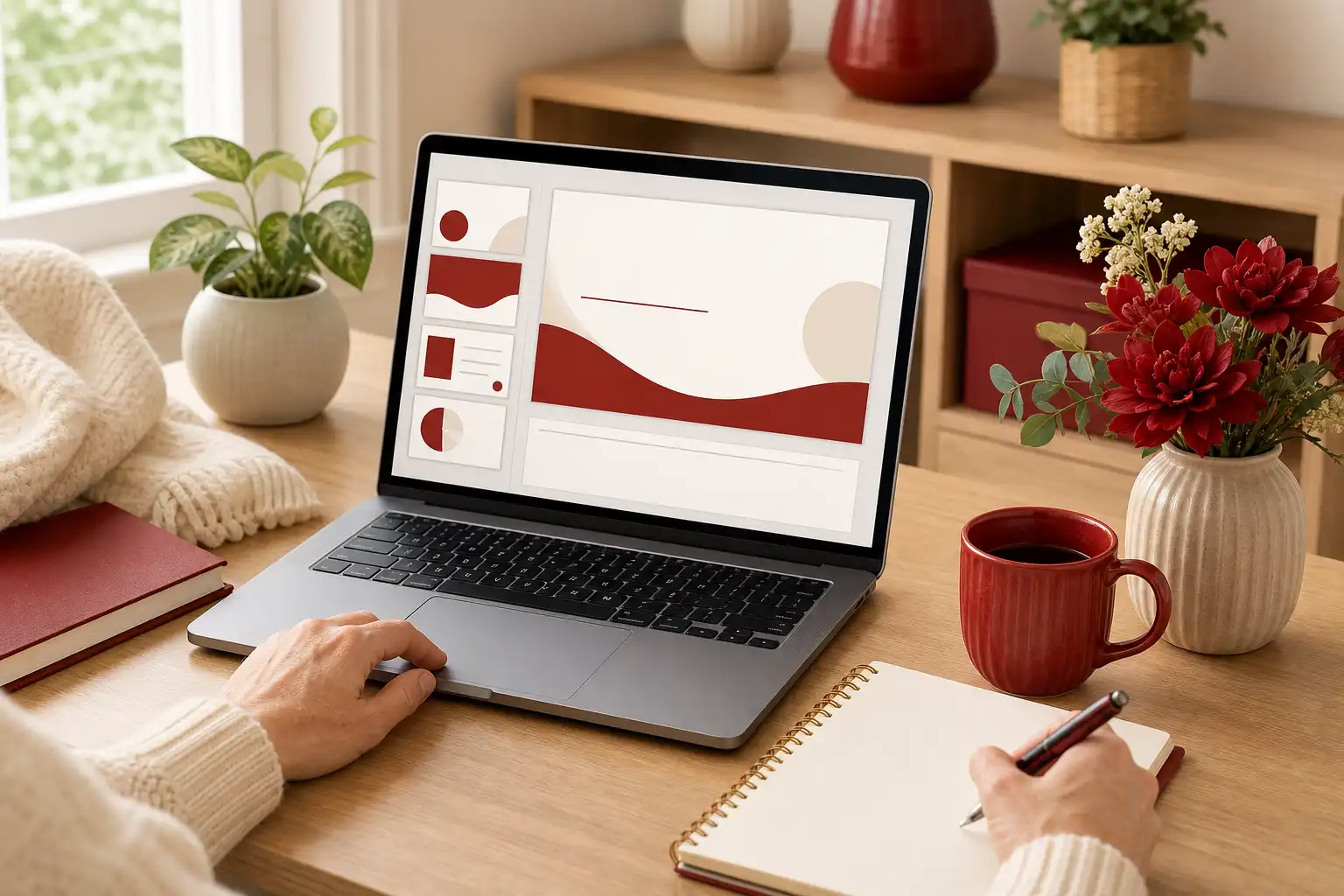
How to Add Speaker Notes in PowerPoint: A Simple Guide
Creating a presentation in PowerPoint can be exciting and even a little nerve-wracking. You want to convey your message clearly, and sometimes, it helps to have little reminders for yourself. That’s where speaker notes come in. They allow you to jot down points you want to remember while you're presenting, without cluttering up your slides. Let’s walk through how to add speaker notes in PowerPoint together.
Why Use Speaker Notes?
Speaker notes are like your secret helper during a presentation. They give you cues and reminders without being visible to your audience. Imagine referring to key points, or even some jokes to lighten the mood, without the audience seeing them!
The process for adding speaker notes might seem tricky at first, especially if the layout feels a bit cluttered. But don’t worry; once you know where to look, it will become second nature.
Let’s Get Started! Adding Speaker Notes in PowerPoint
PowerPoint makes it quite straightforward to add notes. Here’s how to do it step-by-step:
- Open your PowerPoint presentation.
- Select the slide where you want to add notes. You can do this by clicking on it in the slide panel on the left.
- Look for the area at the bottom of the window that says “Click to add notes.” If you don’t see this area, you may need to adjust your view. Go to the “View” tab at the top of the screen and make sure “Normal” is selected.
- Click inside the “Click to add notes” section and type your notes. This space is where you can write down your thoughts, reminders, or anything else you want to remember during your presentation.
- Repeat this for any other slides where you want to add notes. Simply click on the slide and then click in the notes section again.
That’s it! You’ve added your speaker notes.
Viewing Your Speaker Notes and Making Adjustments
Once you have added your notes, you might want to see how they will look during your presentation. PowerPoint offers a handy feature called Presenter View. This allows you to see your notes while the audience only sees your slides.
Here’s how to access Presenter View:
- Start your presentation by clicking the “Slide Show” tab at the top of the screen.
- Then, click on “From Beginning” or “From Current Slide” to begin the slideshow.
- Once the presentation starts, right-click on the slide and select “Show Presenter View.” This will open a separate screen just for you!
- You will see your current slide, your next slide, and the speaker notes right in front of you. If you need to make adjustments to your notes, just go back to the editing view and change them as needed.
Using Presenter View can help ease those presentation jitters. You can take a glance at your notes and feel more confident communicating your ideas.
Common Confusions and Pitfalls
While adding speaker notes is generally simple, some features can be a bit confusing. Sometimes, the notes section can be hidden or minimized. If you don’t see the notes area, remember to check the “View” tab.
Also, be mindful of where you click. If you accidentally click elsewhere, you might lose track of your notes. If that happens, don’t worry! Just navigate back to the appropriate slide and re-open the notes section.
Lastly, when you switch to Presenter View, make sure to test it out beforehand. Check that everything appears correctly and that your notes are clear and concise. Practicing in advance can help you feel more at ease on presentation day.
Tips for Effective Speaker Notes
As you create your notes, keep a few pointers in mind. Write in brief phrases or bullet points that are easy to skim. If you tend to get nervous, including friendly reminders can be useful, such as breathing techniques or encouraging words.
Keep your notes organized by the flow of your presentation. Note key points under each slide to help jog your memory. It’s also a good idea to format your notes for easy reading. Larger font sizes or different colors for different types of notes can help make essential information 'pop'.
By taking these steps, you’ll have a set of functional speaker notes that can enhance your confidence while presenting, allowing you to focus on what matters most—sharing your content.
Wrapping Up
Adding speaker notes in PowerPoint is a simple yet practical tool to help you stay on track while presenting. It allows you to convey your message clearly and confidently. Practice using this feature, and remember to test out Presenter View before your big day. As you get accustomed to these tools, you’ll find that your presentations become more effective and engaging.
Now that you know how to add speaker notes, why not try it out on a practice slide? Write down a couple of key points you’d want to mention if you were presenting right now. The more you practice, the smoother it'll go. Happy presenting!