
How to Mute and Unmute Yourself on a Video Call
By Jason Bingham · September 30, 2026
Jason has spent 16 years helping everyday people get comfortable with technology.
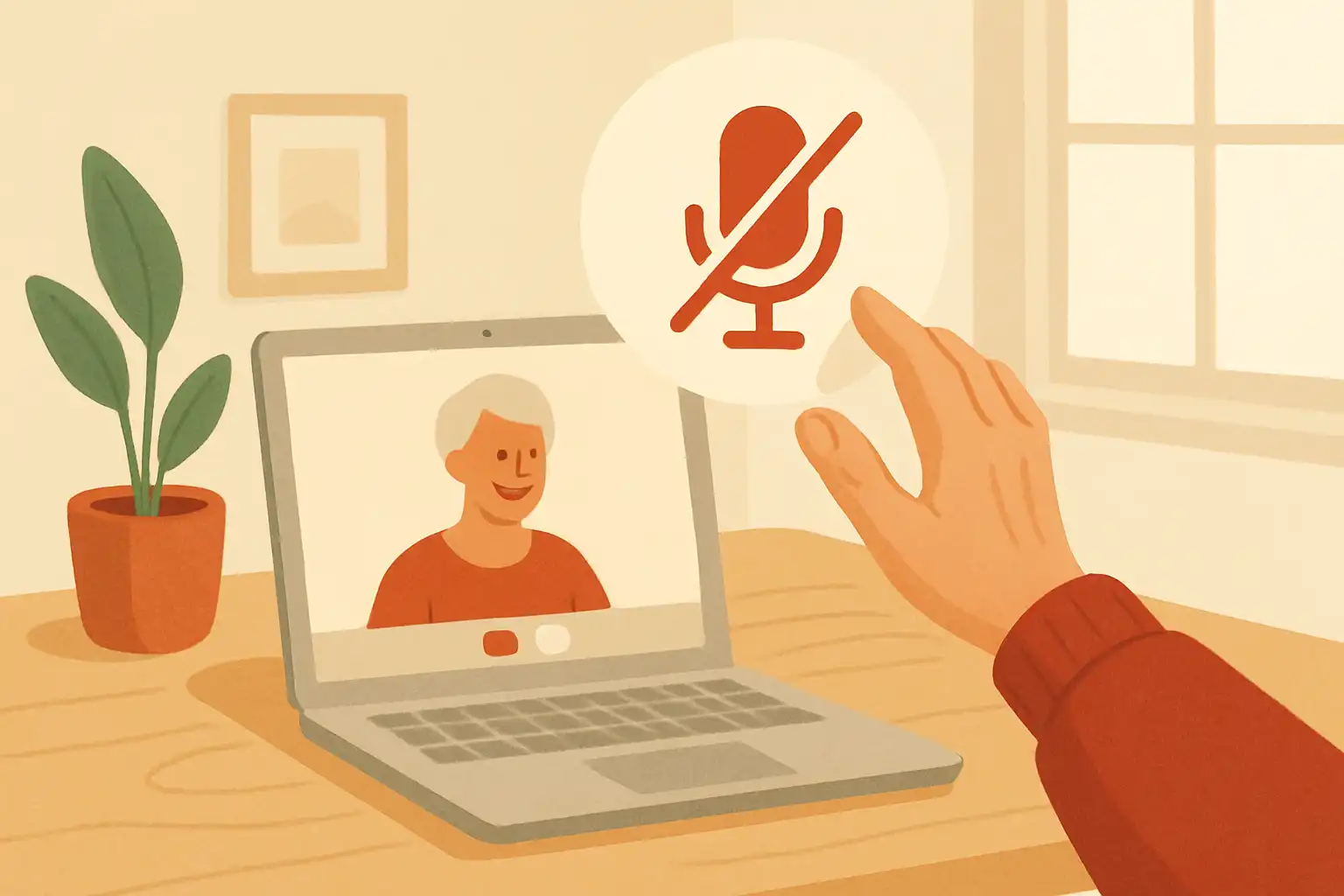
How to Mute and Unmute Yourself on a Video Call
Video calls have become a vital part of staying connected with family, friends, or colleagues. Whether you are chatting over Zoom, Google Meet, or even FaceTime, knowing how to mute and unmute yourself can improve your experience significantly. If you've ever found yourself in a situation where background noise disrupts the call or you want to ensure everyone focuses on someone else speaking, mastering this simple skill can help. Let’s walk through how to do this step-by-step.
Steps to Mute and Unmute Yourself
The process for muting and unmuting yourself can vary slightly based on the application you’re using. Below, I’ll cover how to do it in three popular platforms: Zoom, Google Meet, and FaceTime.
- Zoom: When you join a Zoom meeting, you’ll see a microphone icon at the bottom left corner of the screen. To mute yourself, click on this microphone icon. It will turn red with a slash through it, indicating you’re muted. To unmute yourself, simply click the icon again. You can also press the spacebar to temporarily unmute yourself while holding it down, which is especially handy if you only need to speak briefly.
- Google Meet: In Google Meet, when you’re in a meeting, look for the microphone icon in the bottom center of your screen. To mute yourself, click this icon, and it will turn red with a line through it, indicating you're muted. To unmute yourself, click it once more. If you’re using a browser on your computer, you might face a slight delay when toggling—this is sometimes confusing, so be patient while it updates.
- FaceTime: On a Mac, when you are on a FaceTime call, look for the microphone icon in the FaceTime window. Clicking this icon will mute your audio. You’ll see a line across the icon to indicate you’re muted. To unmute, just click on it again. If you’re on an iPhone, simply tap on the screen during the call to bring up the icons, and then tap the microphone to mute or unmute.
Things to Keep in Mind
It’s important to remember that while you can mute and unmute yourself easily, this feature is sometimes not very obvious for new users. For instance, in both Zoom and Google Meet, the icons aren’t always very visually distinct. You might have to take a moment to notice them, especially if you’re new to video calls. Don’t feel embarrassed if you have to ask someone on the call where the controls are.
Also, remember that when you’re muted, nobody can hear you, so when you want to contribute to the conversation, make sure you unmute yourself before speaking. A little tip—if you are in a noisy environment, it might be better to stay muted until it’s your turn to speak. This helps everyone focus on the discussion without distractions.
A Quick Recap
Knowing how to mute and unmute yourself on a video call is a handy skill to have. Whether you’re doing it on Zoom, Google Meet, or FaceTime, it typically involves a simple click of a microphone icon. Don’t hesitate to practice these steps before an important call—just like learning to ride a bike, the more you do it, the more comfortable you’ll get.
If you’re curious about using video calling in general, you might find it helpful to read How to Use Google Meet for the First Time: A Friendly Guide and How to Join a Zoom Meeting from an Email Invite Easily. Both articles can provide additional context and help make your video call experience smoother.
Take your time to practice, and soon, using these tools will feel as natural as having a conversation over coffee. Happy calling!